| Skelta Workflow.NET Help |
| Developing and Configuring Custom Properties |
Workflow.NET provides a set of properties for the
actions. Custom properties can also be developed. If the custom action needs a
custom property, it has to be developed and configured in the Actions.xml file.
All the properties implement the IPropertyType
interface. For rendering the HTML for the property in the Process Designer, a
web user interface and the property page has to be implemented for the
property. The property type and the property web user interface have to be
configured in the Actions.xml file. Refer to the API documentation for
an example on implementing the IPropertyType interface. For displaying
the property in the Process Designer implement the IPropertyTypeWebUI.
Here is a sample implementation of the IPropertyTypeWebUI.
public class PropertySampleWebUI: IPropertyTypeWebUI

							   {

							      publicPropertySampleWebUI()

							      {


							      }

							      voidIPropertyTypeWebUI.Draw(
							Workflow.NET.ActionoAction, Workflow.NET.Property oProperty,
							Workflow.NET.Web.Designer.ProcessDesigner oWebDesigner )

							      {
							         string output;

							         output = "<TABLE
							class='propertiesboxinputstable' cellpadding=0 cellspacing=0
							width=100%>";

							         output +=
							"<TR>";

							         output +=
							"<TD>Sample Property</TD>";

							         output += "<TD
							width=20><input type=button title=\"Click to Add" +
							oProperty.Name + "\" style=\"width:15;height:15\"
							onclick=wf_openpropertypage('sample', '"+oProperty.Name+"',
							'"+oAction.Name+"',
							'height=250,width=950,resizable=yes')></TD>";

							         output +=
							"</TR>";

							         output +=
							"</TABLE>";

							         oWebDesigner.Controls.Add(new
							LiteralControl(output));

							      }

							      boolIPropertyTypeWebUI.HandlePostBack(Action
							oAction, Property oProperty, ProcessDesigner oWebDesigner, ref string
							ErrorString)

							      {

							         return true;

							      }

							      PropertyPage
							IPropertyTypeWebUI.CreatePropertyPageInstance()

							      {

							         return new
							Workflow.NET.Web.Designer.PropertyPages.PropertyPageSample();

							      }


} |
The sample code displays the HTML for Property in the
Process Designer when an action with this property is clicked on the Process
Designer. The property displays the text ‘Sample Property’ and a button, which
pops up a property page.
All the property pages should inherit the
PropertyPage class. Here is a sample code for the property page.
public class PropertyPageSample:PropertyPage

							   {

							      publicPropertyPageSample()

							      {


							      }

							      public override void HandleRequest()

							      {

							         string filename;

							         base.HandleRequest();

							         //Replace the
							placeholders in the html for the property page.

							         Parse.Replace("placeholder1",
							"This text will replace the place holder.");

							         //html file with the
							placeholders for the property page.


							       filename = ParentControl.DirSourceElements
							+ "PropertyPages\\Sample\\PropertyPageSample.htm";

							         //Write the output to the
							client.


							      Context.Response.Write(Parse.CheckAndProcessFileGetString(filename,
							ParentControl.DirTemp + "Cache",
							"PropertyPages\\Sample\\"));

							      }

							      public override void HandlePostBack()

							      {

							         Property p =
							ParentControl.SelectedAction.Properties[this.Context.Request["propertyname"]];

							         stringval =
							this.Context.Request["propertyvalue"];

							         p.Value = val;

							         //Save the value in the
							process design.

							         ParentControl.WriteFile();

							      }

} |
The code above replaces the place holders in the HTML template and displays the
property page.
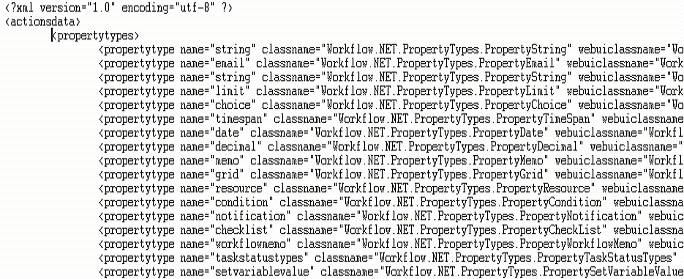
The custom property has to be configured in the Actions.xml file. Add the
propertytype element in the XML file, and specify the name of the property as
value to the name attribute. Specify the name for the property type class and
the web ui class. The assembly for the property type and the web ui classes can
be configured using the assemblyname attribute.
The properties in Actions.xml are shown below.