The Email Action can be used to send an email to a selected set of resources.
The resource(s) can be selected by building a query. The workflow engine
evaluates this query and sends an email to all the resources resulting from the
query. If no resource is selected the email will be sent to all the resources.
The subject and body of the email can be customized by appending the resource
properties available.
|
Property
|
Description
|
|
To
|
The resource(s) to whom the email is to be sent.
|
|
BCC
|
The resource(s) email id to which a copy of the email is to be sent as a Blind
Carbon Copy. To specify the email recipient type the email id directly into the
field.
|
|
BCCResource
|
The resource(s) to whom a copy of the email is to be
sent as a Blind Carbon Copy. To select the resource(s) click the button against
‘BCCResource’ in the Properties pane of the Process Designer. In the window
that pops up, build the condition for selecting the resource(s) and click Update
button.
|
|
CC
|
The resource(s) email id to which a copy of the email is to be sent as a Carbon
Copy. To specify the email recipient type the email id directly into the field.
|
|
CCResource
|
The resource(s) to whom a copy of the email is to be
sent as a Carbon Copy. To select the resource(s) click the button against
‘CCResource’ in the Properties pane of the Process Designer. In the window that
pops up, build the condition for selecting the resource(s) and click Update
button.
|
|
Subject
|
This is the subject of the email. The subject can be
customized for each resource.
|
|
Body
|
This is the actual content of the email sent to the
resource(s). The body can be customized for each resource.
|
|
Mail Format
|
This property specifies the format of the Email. If the value 'HTML' is
selected, then the Email will be in the HTML format. If the value 'TEXT' is
selected, then the Email will be in plain text format.
|
|
Property settings for Email
|
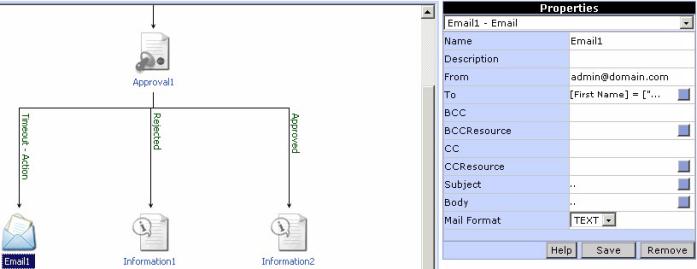
To add an Email action to the
workflow click on the Email button in the toolbox. An icon for the Email action
will be added in the Design Area. The action can be linked with the workflow
using the Link button. To set the properties for the Email action click on the
Email icon in the Design Area. The properties corresponding to the Email action
will be dislayed in the Properties
pane of the Process Designer.
|
|
| Fig 1. Email properties (Top)
|
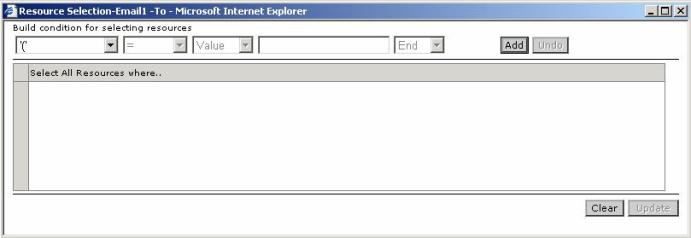
To select the resources to whom this
email is to be sent, click on the button for the 'To' property. A window pops
up (Fig 2.), in which the resources can be
selected. An expression can be built to select the resources based on the
resource properties. Select a property from the list, then select the operator,
type of value (Value, Variable, Content), corresponding value for the property
and the logical operator. Add the condition to the expression by clicking the Add
button. To end the expression select 'End' instead of a logical operator. To
remove a condition already added to the expression, click the Undo button.
After building the expression, click the Update button.
|
|
| Fig 2. Select resources to whom the email is to be sent (Top)
|
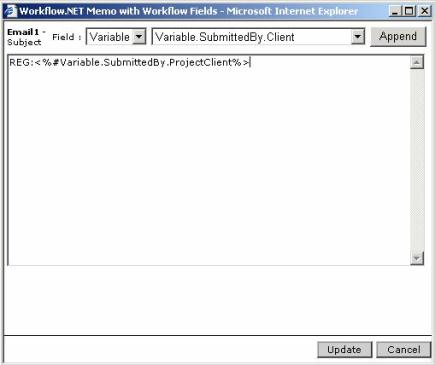
The subject of the email can be
customized. To prepare the email subject, click on the button for the 'Subject'
property. A window pops up (Fig 3.) where the
subject can be typed and customized by appending the resource property values.
Click the Update button to save the subject.
|
|
| Fig 3. Subject for the email (Top)
|
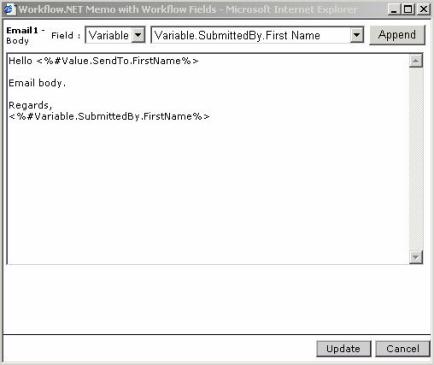
Body is the content of the email. To
prepare the body, click on the button for the 'Body' property. A window pops (Fig
4.) up, where the body can be typed and customized by appending the
resource property values. Click the Update button to save the notes.
|
|
| Fig 4. Body of the email (Top)
|