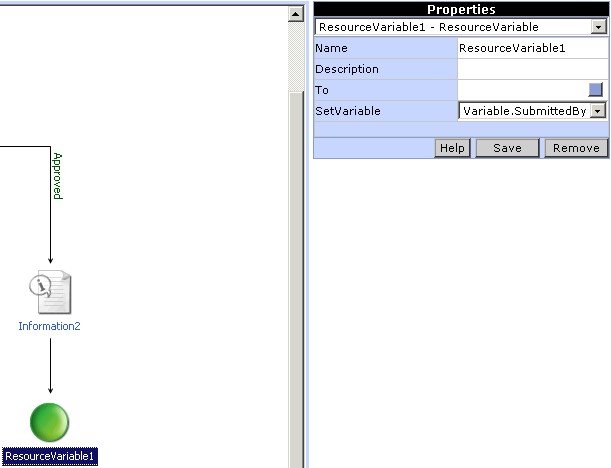
Property settings for ResourceVariable
To add the ResourceVariable action to the workflow click on the ResourceVariable button in the toolbox. An icon for the ResourceVariable action will be added in the Design Area. The action can be linked with the workflow by clicking on the Link button in the tool box. To set the properties for the ResourceVariable action click on the ResourceVariable icon in the Design Area. The properties corresponding to the ResourceVariable action will be displayed in the Properties pane of the Process Designer.
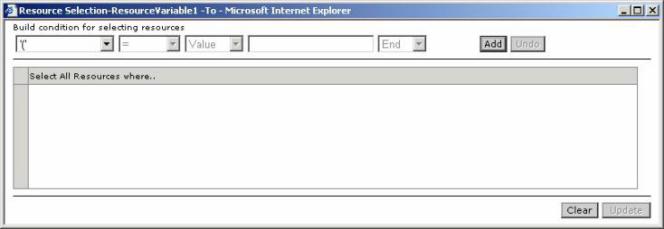
To select the resources to whom this ResourceVariable is to be sent, click on the button for the 'To' property. A window pops up (Fig 1.), in which the resources can be selected. An expression can be built to select the resources based on the resource properties. Select a property from the list, then select the operator, the type of value (Value, Variable, Content), corresponding value for the property and the logical operator. Add the condition to the expression by clicking the Add button. To end the expression select the 'End' instead of a logical operator. To remove a condition already added to the expression, click the Undo button. After building the expression, click the Update button to update the expression for the condition property. To clear the expression click on the Clear button.