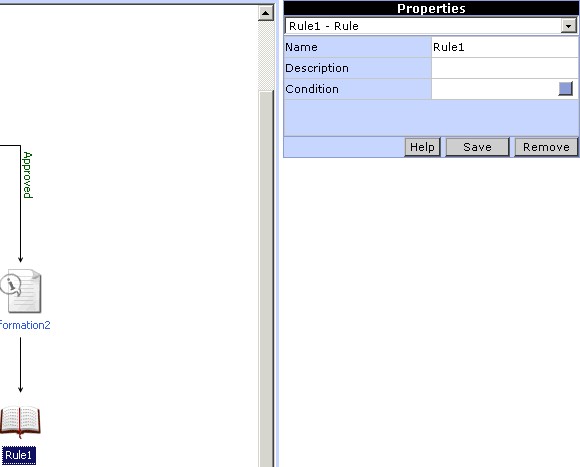
Property settings for Rule
To add the Rule action to the workflow click on the Rule button in the toolbox. An icon for the Rule action will be added in the Design Area. The action can be linked with the workflow by clicking on the Link button in the tool box. To set the properties for the Rule action click on the Rule icon in the Design Area. The properties corresponding to the Rule action will be displayed in the Properties pane of the Process Designer.
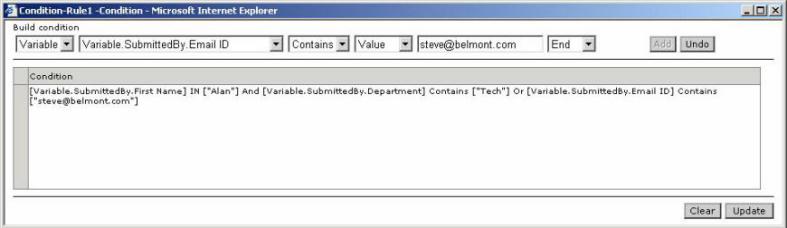
The condition property can be set by clicking on the 'Condition' property button. A window (Fig 2.) pops up which allows you to build a complex expression for the rule. The condition can be built using the fields provided. Condition and logical operators can be used to build the expression. After building the condition, click on the Add button to add the condition to the expression. To remove the condition added, click on the Undo button. To update the expression for the condition property click on the Update button. To clear the expression click on the Clear button.