Property settings for TimerTriggerAction
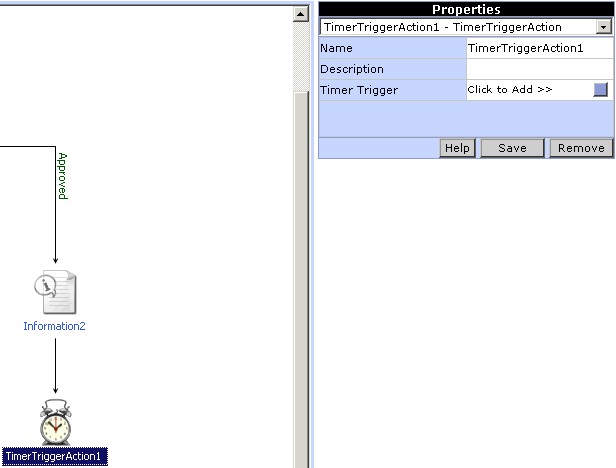
To add the TimerTriggerAction to the workflow click on the TimerTriggerAction button in the toolbox. An icon for the TimerTriggerAction will be added in the Design Area. The action can be linked with the workflow by clicking on the Link button in the tool box. To set the properties for the TimerTriggerAction click on the TimerTriggerAction icon in the Design Area. The properties corresponding to the TimerTriggerAction action will be displayed in the Properties pane of the Process Designer.
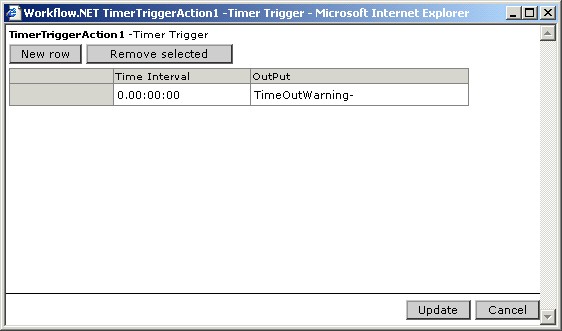
To specify the Timer Trigger, click on the button for the 'Timer Trigger' property. A window pops up (Fig 2.), in which the timeouts can be specified. Click the Remove selected button to clear earlier values. Enter the time by which to delay the action in the 'Time Interval' field and the corresponding output message in the 'Output' field. Click the New row button to add additional rows of timeouts. After specifying the timeouts, click the Update button.