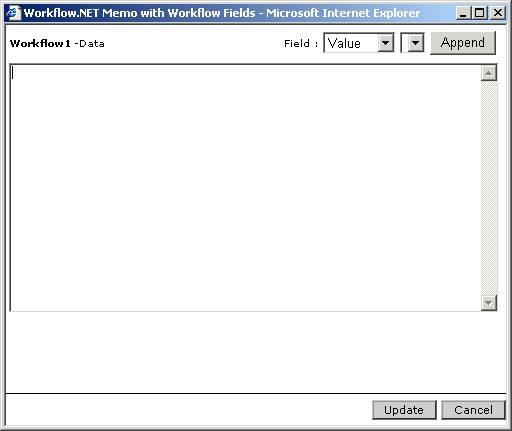
Property settings for Workflow
To add the Workflow action to the workflow, click on the button for Workflow in the Toolbox area. An icon for Workflow is added automatically in the design area. Link this action appropriately with the workflow. To set the properties for Workflow, click on the Workflow icon. A list of properties for the Workflow action will be displayed in the Properties pane. Enter an appropriate name and description for the Workflow and set all the properties.
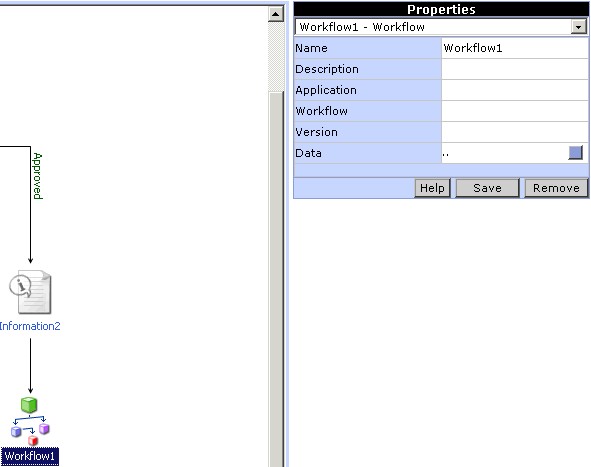
To specify the data, click on the button for the 'Data' property. A window pops up (Fig 2.), in which the data can be specified. Select a type of value (Value, Variable, Content) and the corresponding value for the property and then click the Append button. After specifying the data click the Update button.