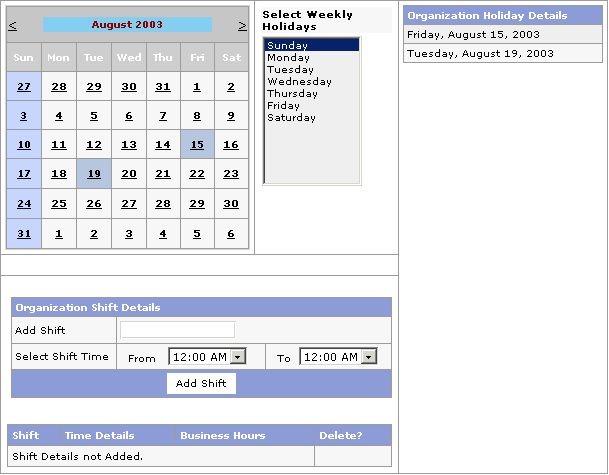
The Skelta Workflow.NET Organization Calendar web form is the user interface where the holidays and shifts in an organization can be specified. These Organization Holidays and Shift details will be inherited in the Resource Calendar. The Organization Calendar screen opens when the Calendar control is executed from the Web Application.
The Calendar user interface has four main elements –
These are described in separate sections. The Organization Calendar screen is shown here with two organization holidays selected for the month of August.
Organization Calendar
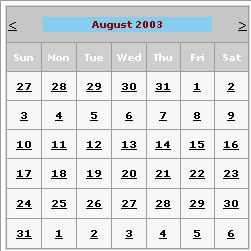
Calendar
The Calendar displays a monthly calendar with provision to go to the previous and the following month.
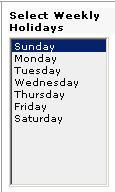
Select Weekly Holidays List
You can select the weekly holiday(s) for the organization from this list, which displays all the days of the week from Sunday through Saturday. The selected weekday will be highlighted in blue on the calendar. You can select more than one day as weekly holidays. Press and hold down the <Shift> button and click on the dates to select successive days. If the days to be selected are separated by a working day press and hold <Ctrl> button and click on the dates to select. You can remove the selection by selecting any other day in the list.
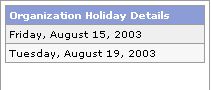
Organization Holiday Details
This list shows the organization holidays (other than weekly holidays) selected for the month. To specify the resource holidays, click on the required date on the calendar. The selected date(s) is highlighted in grey on the calendar and also listed under the Organization Holiday Details heading. You can remove the selection by clicking on the highlighted date.
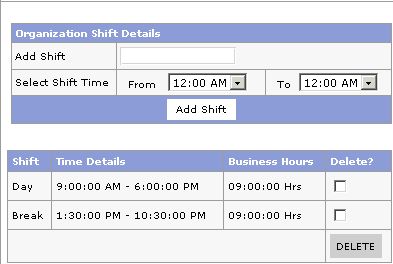
Organization Shift Details
You can add a new shift for the organization here. To add a shift, first enter the shift name in the Add Shift field. Then specify the shift time in the Select Shift Time drop downs. You can specify the shift start time in the From drop down and the shift end time in the To drop down. After you select the shift time click the Add Shift button to add the new shift. The shifts that have been added are shown in a table below the Add Shift button along with a check box for each and the DELETE button. You can remove a shift by clicking the corresponding checkbox and then clicking DELETE .