
Tool bar
The Tool bar has the following seven tools that you can use to perform key functions. When you click any of these controls the corresponding window pops up, where you can perform the necessary action.
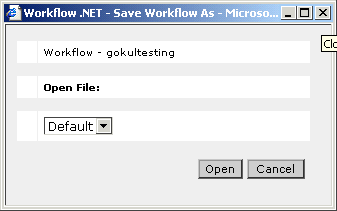
Open Popup Window
The Open control opens a popup with the Workflow name and the Open File: dropdown. It opens a list with all the available files for the workflow. You can select a file and click Open to open it. The Cancel button will close the popup without opening a file.
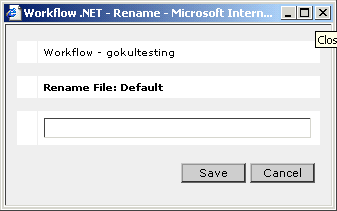
Rename Popup Window
The Rename control opens a popup with the Workflow name and the Rename File:<selected file name> field. You can enter the new name for this file in the data field below this and click Save to save it. The Cancel button will close the popup without renaming a file.
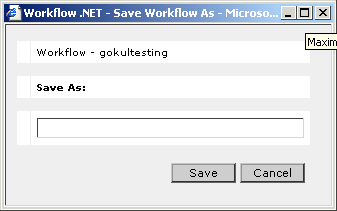
Save As Popup Window
The Save As control opens a popup with the Workflow name and the Save As: field. You can enter the name for the new copy of this file in the data field below this and click Save to save the copy. The Cancel button will close the popup without saving a copy of the file.

Delete Popup Window
The Delete control opens a popup with the Workflow name and the Delete File: dropdown. It opens a list with all the available files for the workflow. You can select a file and click Save to save it. The Cancel button will close the popup without deleting.
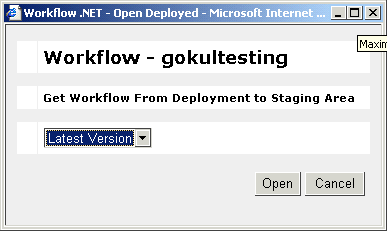
Open Deployed Popup Window
The Open Deployed control opens a popup with the Workflow name and a dropdown with the label Get Workflow From Deployment to Staging Area. You can select a workflow file from the dropdown and click Open to open it. The Cancel button will close the popup without opening any file.
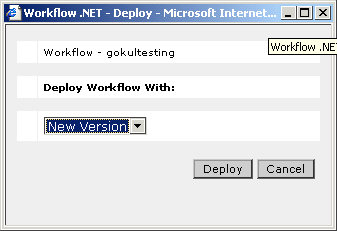
Deploy Popup Window
The Deploy control opens a popup with the Workflow name and the Deploy Workflow With: dropdown. It opens a list with all the available versions of the workflow. You can select a file and click Deploy to deploy it. The Cancel button will close the popup without deploying a file.