The Expense Declaration process involves a resource requesting an expense amount by submitting an expense declaration for approval. The resource has to state the amount requested and the reason for the requisition. This process involves two resources to act on the approval action. They are the resource’s Manager and Associate Director. If the request is approved or rejected, the information is sent to the resource and the administrator. This topic discusses the flow of actions in the workflow process design.
Note: You need to install the Sample Application in order to use this topic.
To view the actions involved in the Workflow defined for the sample Form
1. Login to the admin section using the following login details:
username: Daniel@skeltademo.com
password: Daniel
2. Go to the Expense Declaration Designer option in the Main Menu
To access the Expense Declaration Application
1. Go to this page: http://localhost/SkeltaSample/Samples.aspx
This opens the Skelta Sample Applications Main Page
2. In this page select the Expense Declaration option by clicking the corresponding radio button
3. Click the Submit button
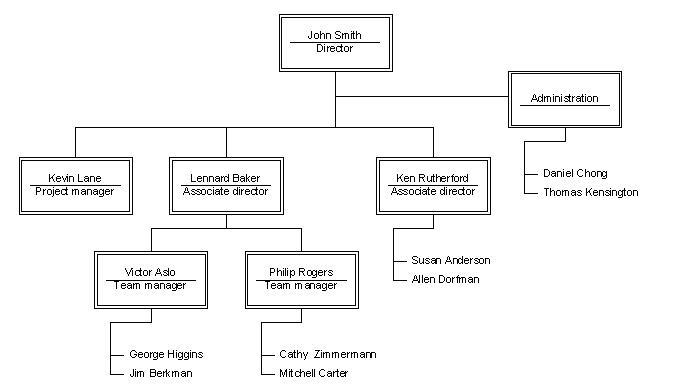
Consider the following scenario: Cathy is sending a request for the expense amount. Cathy’s Manager is Philip and Philip’s Manager is Lennard who is the Associate Director as shown in the Organization chart.
In the sample Form, the workflow process starts when an expense form is submitted by the user. On submission, the Workflow engine is alerted and the process begins.
To see how the Workflow actions take place, follow the steps given below:
1. Expense Declaration Submission
a. Login as a User with the following login details:
username: Cathy@skeltademo.com
password: Cathy
User details can be viewed in the admin login or from the Users table
b. Go to Expense Declaration in the Main Menu.
c. Enter the Expense Details and submit.
After the Submission button is clicked, the Engine is alerted about the Expense Form Submission, and the Expense Declaration is sent to the Manager under whom the resource works.
2. Project Manager (PM) Approval
a. Login as the Project Manager with the following login details:
username: Philip@skeltademo.com
password: Philip
Designation details can be viewed in the admin login or the Designations table
b. Go to the Application Status option in the Main Menu
The Activity List Control included in this page will show a Listing view of the Forms submitted to the resource currently logged in for approval, while the Activity UI Control will show the Detailed view of a selected Form.
c. Clicking on the Ref Id or Workflow will display the Detailed view of the Expense Form.
d. Approve and Reject buttons have been provided for action to be taken by the Manager.
If approved,
i. Then a Rule action checks if the expense amount is less than $500 or not.
ii. If the expense amount is less than $500 then the Expense Declaration is accepted and the acceptance information is sent to the resource named Cathy.
iii. If the expense amount is greater than $500, then it goes to the Associate Director for approval. If the Manager himself/herself is the Associate Director, then the Expense Declaration is accepted and the acceptance information is sent to the resource Cathy. Otherwise, it is sent to the Associate Director for approval.
3. Associate Director Approval
a. Login as Associate Director with the following login details:
username: Lennard@skeltademo.com
password: Lennard
b. Go to Application Status in the Main Menu.
c. Clicking on the Ref Id or Workflow will give a Detailed view of the Expense Form.
d. Approve and Reject buttons have been provided for action to be taken by the Associate Director.
If approved,
The acceptance information is sent to the resource Cathy and her Administrator.
If rejected,
The rejection information is sent to Cathy.