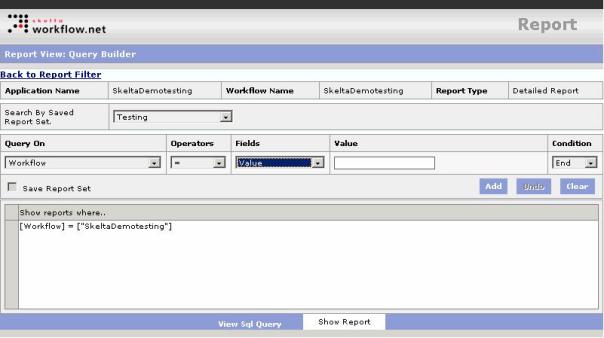
The Report View: Query Builder screen is displayed when you select the Detailed Report option in the Report Type drop down and click on Proceed>>. This screen is used to build a query condition to select the workflow for viewing the report. After specifying the query condition you must click the Show Report button to view the Detailed Report in the Report View: Report Data View screen.
The Query Builder screen has three main parts. The header fields at the top showing general information like Application Name, Workflow Name and Report Type is the first part. These fields show values that are set in the Report control properties.
The second part is the Query condition builder consisting of fields and dropdowns with numerous options to choose from for building a query. This part also has a field to view the newly built query as well as buttons to add and clear query conditions.
The links and buttons to access other screens constitute the third part of the screen. This includes the Back to Report Filter link at the top of the screen, which closes this screen and opens the previous screen i.e. the Report Filter screen. In addition it has the View Sql Query and Show Report buttons. These elements are described below.
Query Builder Screen
Query condition builder –
The Query condition builder has the following elements that are used to create a query condition to select the workflow to view reports for.
 .
This button opens a popup window in which you can build a query for selecting
resource(s).
.
This button opens a popup window in which you can build a query for selecting
resource(s). The View Sql Query button opens the window shown here with the actual database query behind the query condition that is built in the Query Builder.
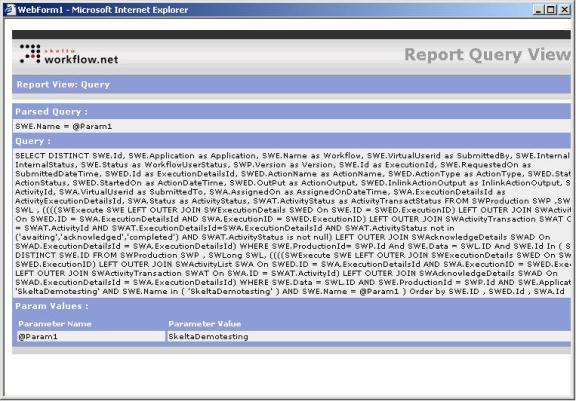
View SQL Query Screen
The Show Report button opens the Report View: Report Data View screen, which is the Detailed Report screen. The Report shows detailed information on workflow execution corresponding to the specified query condition.