The Task Action is used in a Skelta Workflow.NET workflow process design in
order to assign a task to a resource or set of resources. This action is used
to define the task type and the associated status.
The Properties defined against Task and the role
played by the properties are explained in the table below.
|
Property
|
Description
|
|
To
|
This property specifies the resource(s) who have to take up the Task action,
this property is tagged with the Ignore Unavailable Resources which in
turn is tagged with Alternate Resource Allowed. This will be explained
in detail later.
|
|
Subject
|
This is the subject of the Task. The subject can be customized for each
resource. To assign a subject to the Task, click the 'Subject' button in the Properties
pane for the Task action. In the window that pops up, customize the subject by
appending the various fields to the subject.
|
|
Notes
|
This is the actual content of the Task sent to the resource(s). The notes can
be customized for each resource. To assign the content of the Task, click the
'Notes' button in the Properties pane for the Task action. In the window
that pops up, customize the content by appending the various fields to the
notes.
|
|
TaskTypes
|
You can define Task Type and Status under TaskTypes in a Task Assignment. The
Status added under Task Types is used to maintain the status of the Task
assigned.
-
The user interface displays the Task Type and Status under them.
-
Task Completion Maker functionality.
-
There can be Task Completion Status associated with a Task Type. The outcome of
the Task Assigned is determined by the Task Completion Status tagged with Task
Type.
-
Whenever a resource acts upon (submits) the Task, the engine is notified with
the Task Completion Status of the Task, provided the status is marked as Task
Completion status.
-
Edit and Delete options have been provided.
-
First the user clicks on the Add New
button (the option to add more than one Task Type is also provided.)
-
Then the user is asked to enter the Task Type and the Number of Status to be
added under the Task Type.
-
For the Task Type, the User is asked to enter the Status.
|
|
Min. Acknowledgements
|
This property (referred to as Min.Ack), which can be specified as a
number or percentage, is the minimum number of resources who should acknowledge
receipt of the Task assignment. This property is related to the 'Timeout
warning for Acknowledgement' and 'Timeout for Acknowledgement' properties. To
illustrate, when 'Timeout for Acknowledgement' is reached, the activity first
checks if the acknowledgement count is less than Min.Ack (if it is set). If it
is, the activity will be removed from all activity lists. If the 'Min.Ack' has
already been satisfied, then the activity will be removed from the
non-acknowledgers' lists. If the Min.Ack value is 0, then the activity checks
if the acknowledgement count is less than Max.Ack (if it is set). If it is, the
activity will be removed from all activity lists. Else the activity will be
removed from the non-acknowledgers' list. If both Min.Ack and Max.Ack are set
to 0, then there should be at least one acknowledgement within the set time,
otherwise the activity will be removed from all activity lists.
|
|
Max. Acknowledgements
|
This property (referred to as Max.Ack), which can be specified as a
number or percentage, is the maximum number of resources who should acknowledge
receipt of the Task assignment. If 'Timeout for Acknowledgement' is specified
and achieved, and the 'Min.Ack' is also satisfied, then the activity waits for
action from those who acknowledged. If the Min.Ack value is set to 0, then it
checks if the acknowledgement count is less than Max.Ack. If it is, the
activity will be removed from all activity lists. Else the activity will be
removed from the non-acknowledgers' list. If both Min.Ack and Max.Ack are set
to 0, then there should be at least one acknowledgement within the set time,
otherwise the activity will be removed from all activity lists.
|
|
Timeout for Acknowledgement
|
This property (referred to as Time For Ack.) specifies the time until
which acknowledgement is allowed i.e. the time until which the Task action will
wait for acknowledgement. If Min.Ack is set and is not reached, the activity is
removed from all activity lists. If Min.Ack is 0, it will check if
acknowledgement count is less than Max.Ack. If it is, the activity is removed
from all activity lists. Else the activity will be removed from the
non-acknowledgers' list. The activity will remain in the acknowledgers'
activity list and wait for action from them.
Click here to
view the flowchart for Timeout for Acknowledgement.
|
|
Timeout Warning for Acknowledgement
|
This property (referred to as Time Out Warning For Ack.) specifies the
time at which a warning is provided to a resource to acknowledge the activity
assigned to him/her. If the resource does not acknowledge within this time the
engine is notified with a warning. Thus if 'Min.Ack' is set, and it is not
satisfied before the given time then a warning is sent. If Min.Ack is 0, it
will check for Max.Ack. If the acknowledgement count does not reach the Max.Ack
value within the set time, a warning is sent. If both Min.Ack and Max.Ack are
not set, this property is ignored.
Click here to
view the flowchart for Timeout Warning for Acknowledgement.
|
|
How Acknowledgement Properties
relates to each other
Task action is assigned to the resources in the Task list by the workflow
engine. Task action has a default property set that at least one person has to
make a Read Acknowledgement (Take Ownership) of the Task action.
A button interface has been provided for the resource to Acknowledge (Take
Ownership). However, the resource can act on the Task without acknowledging
first, in which case acknowledgement will be considered to be done. i.e. if the
resource acts upon the Task action without acknowledging then it is considered
as an acknowledgement with action taken.
After the resource has acknowledged, a link is provided to the resource which
opens a pop up with the details of the other resources. This is again tagged
with the 'Hide Responses?' property. The link will be provided only if 'Hide
Responses?' is set as 'No'. The pop up will have details like Resource name,
Acknowledge Status, Action taken, Comments etc.
If the 'Min.Ack' property is set and the acknowledge count has reached the set
limit [percentage or number] then the 'Timeout Warning For.Ack' property is not
considered.
If the 'Min.Ack' property is set and the acknowledge count has reached the set
limit [percentage or number] and the 'Time Out For.Ack' is also reached then
the activity is removed from other resources' task list and the activity waits
for action from those who acknowledged.
If the 'Min.Ack' limit is not reached for the Task action, and the 'Timeout
Warning For Ack.' has been exceeded then the resource is notified with a
warning by including an email or an information action, with the Timeout
Warning for Acknowledgement link to it.
If Time Out For.Ack is set, if the Task action has not reached the minimum
limit (Min.Ack) and the 'Time Out For Ack.' has been reached, then the activity
is removed from the task lists of all the resources.
If 'Min.Ack' = 0 and if 'Max.Ack' is set, the activity waits for
acknowledgement or action until the 'Time Out For Ack.' is reached (if this is
set).
If none of the Acknowledgement properties are set then the activity waits until
the resource acknowledges or acts upon it.
|
|
Affirmative Answer for TaskAssignment Completion [% or Number]
|
This property is used to check what percentage or number of persons should take
action for the Task. Decision for the Task is taken only after the specified
number or percentage of resources have taken the action. The activity waits for
the resources' action until the 'Timeout for Action' is reached.
|
|
Action Min Limit TaskAssignment Completion [% or Number]
|
This property specifies the minimum number of resources required to act on the
Task before the 'Timeout Warning for Action'. If the action limit is reached
before the 'Timeout Warning for Action' then the warning message is not shown.
|
|
Minimum Time for Action.
|
This property specifies the minimum time that is required to finish the action.
If the resource does not have the minimum time left in the day to complete the
action then the alternate resource is selected.
|
|
Timeout warning for Action
|
This property specifies when a reminder has to be provided for the resources to
act on the TaskAssignment, if the action count has not been reached. If
properties such as Max.Ack, Affirmative Action for TaskAssignment Completion
(AAT), and Action Limit (AL) are set, once the property values are reached then
a warning is sent to the participant. When the timeout is reached, the
following checks are made:
if AL is set, when the 'action count' i.e. the no. of task assignment actions
(AC) < AL, then a warning is sent,
if AL = 0 and AAT is set, and when AC < AAT, then a warning is sent to the
participant.
Click here to
view the flowchart for Timeout Warning for Action.
|
|
Timeout for Action
|
This property's value is used to decide until what time the activity should
wait for resource action. If properties such as Max.Ack, AAT, AL are set, once
the property values are reached the activity is removed from the task lists of
all the resources. When the timeout is reached, the following checks are made:
if AL is set, when the 'action count' i.e. the no. of task assignment actions
(AC) < AL, then the timeout for action is performed and the activity is
removed from all activity lists.
if AC > AL, it checks with the 'decision count' (DC) and AAT.
if DC >= AAT (if it is set), the action is considered to be completed.
if AAT = 0 and if DC >= AL, the action is considered to be completed.
if AL = 0 and AC < AAT, then the timeout for action is performed and the
activity is removed from all activity lists.
if AL = 0 and AC > AAT, it will check with DC. If DC > AAT it is
considered to be completed.
if AL = 0 and AAT = 0, then if DC is at least 1, then it is considered to be
completed.
Click here to
view the flowchart for Timeout for Action.
|
|
Hide Responses?
|
If this property is set to 'No', then the resource’s details will be visible to
the resources who have acknowledged.
|
|
Consider only Business Hours for Timeout?
|
If this property is set, all the time out calculations will be done based on
only the business hours, i.e. leaves and Organization holidays will not be
considered. Business hours for the Organization and Resource can be set using
the calendar controls (Organization,
Resource
) provided.
|
|
Forwarding Allowed?
|
If this property is set then the resource is provided with a Forward button.
Using this the resource can forward the activity to another resource
|
|
Ignore Unavailable Resources?
|
If this property is set, when the Task is assigned to the resources list a
check is first done to see whether the resource is available. If the resource
is not available then a check is made for an alternate resource assigned to the
unavailable resource. Simultaneously the value of the property 'Alternate
Resource Allowed' is checked. If that is also set, then the Task is assigned to
this resource.
|
|
Alternate Resource Allowed?
|
This property is set to assign a particular task to an alternate resource in
the absence or unavailability of any resource.
|
|
Severity
|
This property is set to indicate the severity of the
Task. It can be set to 'Low', 'Medium', or 'High'.
|
|
Show Custom Document View Window
|
If this property is set, then the Custom Document View
Window will be shown.
|
|
Send Notification Email
|
If this property is set to 'Yes', then notification
emails will be sent to the resources.
|
|
Multiple TimeOut Warning
|
This is used to set recurring timeout warnings that
will be sent to the resources who have to take action. To set multiple timeout
warnings, click the 'Multiple TimeOut Warning' button in the Properties pane
for the Task action. A new window pops up. In this window, set the interval for
the recurring warning as well as the output message.
|
|
Property settings for Task.
|
|
To add the Task action to the
workflow click on the Task button in the toolbox. An icon for the Task action
will be added in the design area. The action can be linked with the workflow by
clicking on the Link button in the tool box. To set the properties for the Task
action click on the Task icon in the design area. The properties corresponding
to the Task action will be displayed in the Properties
pane of the Process Designer.
|
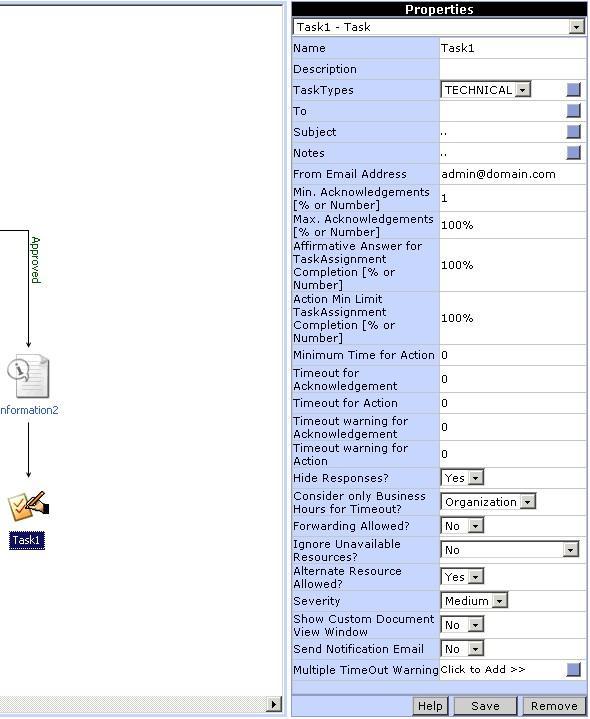
|
| Fig 1. Task properties (Top)
|
|
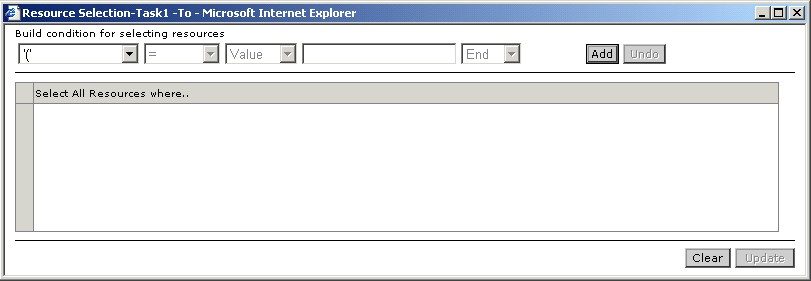
To select the resources to whom this
Task is to be sent, click on the button for the 'To' property. A window pops up
(Fig 2.), in which the resources can be selected.
An expression can be built to select the resources based on the resource
properties. Select a property from the list, then select the operator, type of
value (Value, Variable, Content), corresponding value for the property and the
logical operator. Add the condition to the expression by clicking the Add
button. To end the expression select the 'End' instead of a logical operator.
To remove a condition already added to the expression, click the Undo button.
After building the expression, click the Update button.
|
|
| Fig 2. Select resources to whom the Task is to be sent (Top)
|
|
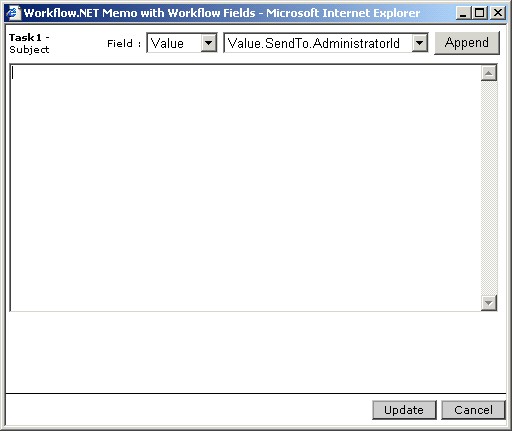
The subject of the Task can be
customized. To prepare the Task subject, click on the button for the 'Subject'
property. A window pops (Fig 3.) up where the
subject can be typed and customized by appending the resource property values.
Click the Update button to save the subject.
|
|
| Fig 3. Subject for the Task (Top)
|
|
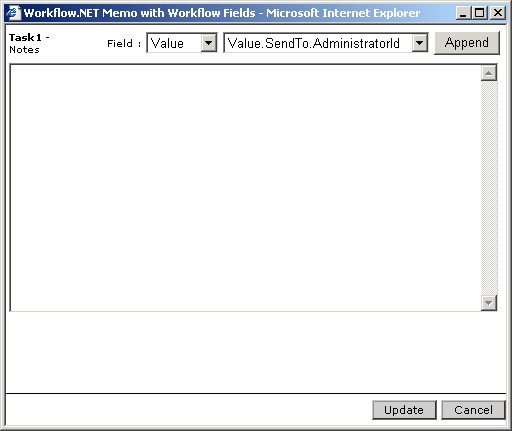
Notes is the content of the Task. To
prepare the notes, click on the button for the 'Notes' property. A window pops
(Fig 4.) up where the notes can be typed and
customized by appending the resource property values. Click the Update button
to save the notes.
|
|
| Fig 4. Notes for the Task (Top)
|
|
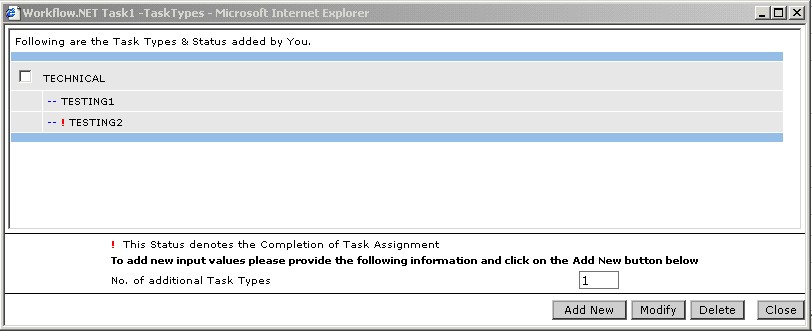
The TaskTypes
property in Task Action provides the interface to add Task Types and Status.
The functionality of the Task Action is achieved through this property. A Task
Status marked as ! is said to be the Task
Completion Status for the Task Action. (E.g. If the TASK COMPLETION Task Type
has COMPLETED & ON-HOLD as status, and COMPLETED is tagged with the Task
Completion Maker, then, when the Task is submitted with COMPLETED as the
selected status, the engine is alerted about the 'COMPLETED' status and it
executes the next process in the workflow.
The interface shown in Fig 5
is to Add, Edit and View the Task Types and Status added in the Task action.
|
|
| Fig 5. Task - Listing of Task Types,Status,Task Completion Status.
(Top)
|
|
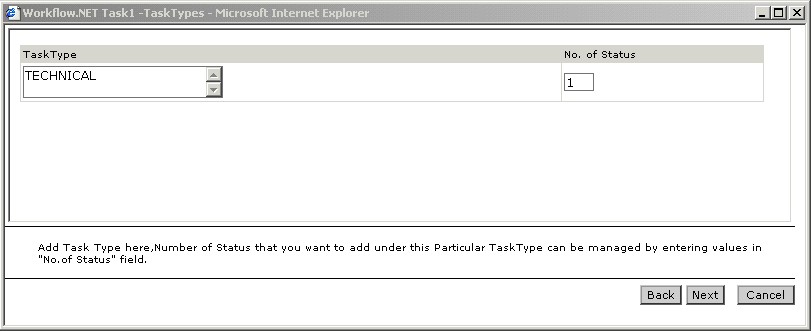
The interface shown below is the
second step for adding Task. This interface is displayed after the user selects Add
New or Modify from the interface shown in
Fig 5. The following parameters can be set here,
Task Type name and
Number of Status to be added under Task Type.
|
|
| Fig 5.1 Task - Add Task Type and No.of Status Under Task Type.(Top)
|
|
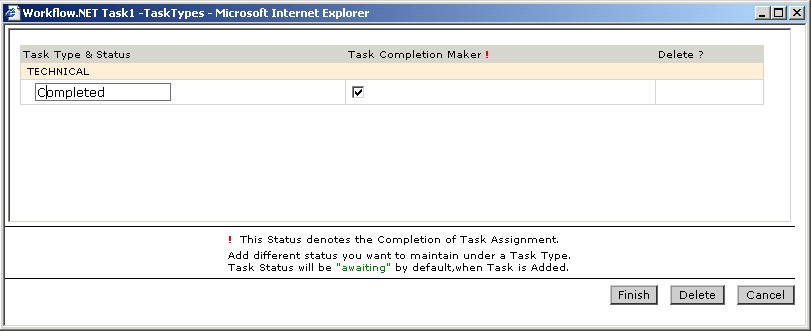
The interface shown below is the
third step for adding a Task. The following Add New or Modify set
here,
Status under the Task Type.
Set the status as Task Completion Status.
Delete the status.
|
|
| Fig 5.2 Task - Add Status for Task Types (Top)
|
|
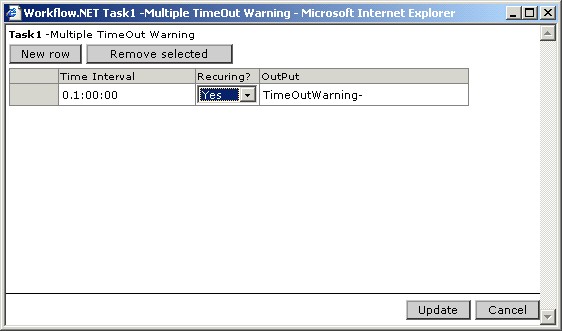
Multiple TimeOut Warnings are
repeated warnings sent to the resources regarding timeout of the Task Action.
To set multiple timeout warnings, click on the button for the 'Notes' property.
A window pops (Fig 6) up where the Time Interval
can be typed and the Recurring? option set to 'Yes'. The output message can
also be typed here. More than one timeout warning can be set by clicking the New
row button and entering the new timeout warning settings. Click the Update
button to save the settings.
|
|
| Fig 6. Multiple TimeOut Warning for the Task (Top)
|